
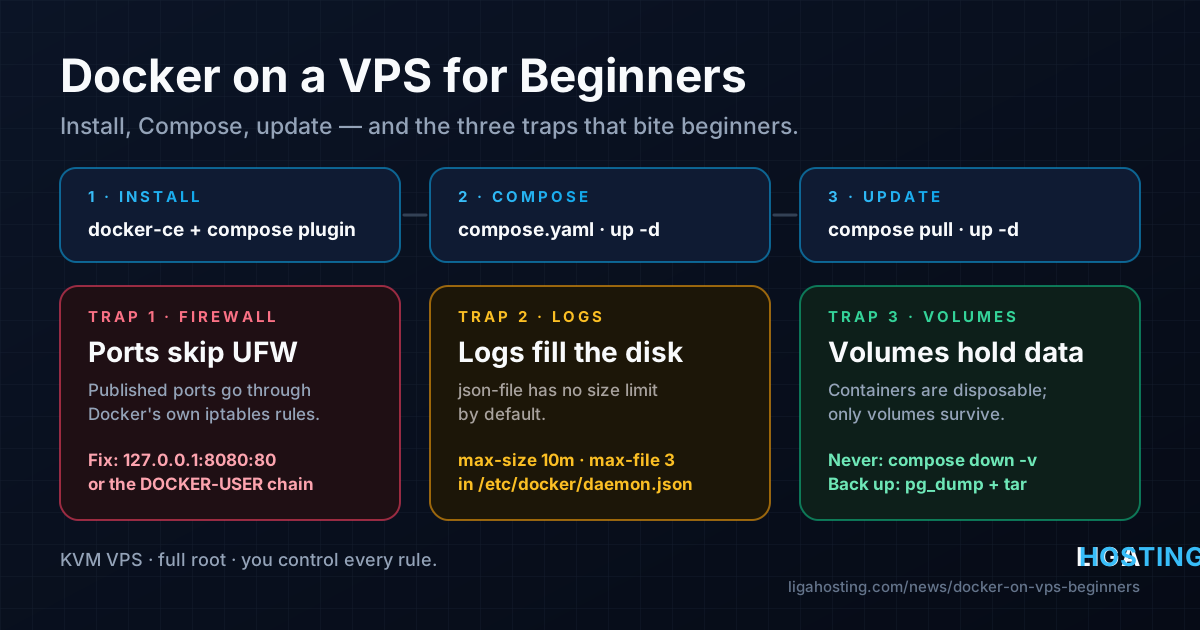
Docker on a VPS for Beginners — Install, Compose and Keep It Updated
Docker lets you run an application together with everything it needs — the right language version, libraries, a database — in isolated containers that start with one command. On a VPS this is very convenient: you can run several apps side by side without them fighting over package versions, and move them to another server by copying a folder.
It also comes with a few surprises that catch almost every beginner: a port you "only opened in Docker" is reachable from the whole internet even though UFW says it is closed, container logs slowly fill the disk, and one wrong flag deletes your database. This guide installs Docker the right way, runs a small Compose stack, and then deals with exactly those three problems.
Before you start: what you need
- A KVM VPS with root access. Docker needs a real Linux kernel, which KVM gives you. Container-based virtualization often cannot run Docker properly.
- A supported 64-bit OS: Ubuntu 22.04 or 24.04, Debian 12 or 13, or AlmaLinux 9/10. Commands below cover all three families.
- Enough RAM for your containers, not for Docker itself. The Docker daemon uses little memory; a reverse proxy plus a small app and a database fit in 2 GB, while several databases or a Java app want 4–8 GB. If you are tight on memory, add swap first so the kernel does not kill your database.
- Basic hardening done (SSH keys, UFW or firewalld, updates). Docker does not replace it.
Step 1 — Install Docker Engine from Docker's repository
The docker.io package in Ubuntu and Debian works, but it lags behind and does not include the current Compose plugin. Use Docker's official repository instead. First remove any old or conflicting packages (it is fine if none are installed):
for pkg in docker.io docker-doc docker-compose podman-docker containerd runc; do
  sudo apt remove -y $pkg
done
Ubuntu:
sudo apt update
sudo apt install -y ca-certificates curl
sudo install -m 0755 -d /etc/apt/keyrings
sudo curl -fsSL https://download.docker.com/linux/ubuntu/gpg -o /etc/apt/keyrings/docker.asc
sudo chmod a+r /etc/apt/keyrings/docker.asc
echo "deb [arch=$(dpkg --print-architecture) signed-by=/etc/apt/keyrings/docker.asc] \
https://download.docker.com/linux/ubuntu $(. /etc/os-release && echo "$VERSION_CODENAME") stable" | \
  sudo tee /etc/apt/sources.list.d/docker.list > /dev/null
sudo apt update
sudo apt install -y docker-ce docker-ce-cli containerd.io docker-buildx-plugin docker-compose-plugin
Debian: exactly the same commands, but replace both occurrences of linux/ubuntu with linux/debian.
AlmaLinux: remove Podman first if it is installed (sudo dnf remove -y podman buildah), then:
sudo dnf -y install dnf-plugins-core
sudo dnf config-manager --add-repo https://download.docker.com/linux/rhel/docker-ce.repo
sudo dnf install -y docker-ce docker-ce-cli containerd.io docker-buildx-plugin docker-compose-plugin
sudo systemctl enable --now docker
On Ubuntu and Debian the service starts automatically. Verify the installation on any distribution:
sudo systemctl status docker --no-pager
sudo docker run --rm hello-world
docker compose version
If hello-world prints "Hello from Docker!", the engine can pull images and run containers. The full, always-current instructions are in the official Docker installation docs.
About the docker group: sudo usermod -aG docker youruser lets you run docker without sudo. Be aware that membership in the docker group is equivalent to root: anyone in it can start a container that mounts / and edit any file. Only add accounts you would also give sudo to. Log out and back in for the change to apply.
Step 2 — Your first Compose project
Typing long docker run commands does not scale. Docker Compose describes your containers, ports, volumes and settings in one YAML file, so the whole stack is versioned and reproducible. Create a folder per project:
sudo mkdir -p /opt/myapp/html && cd /opt/myapp
echo '<h1>It works</h1>' | sudo tee html/index.html
printf 'DB_PASSWORD=%s\n' "$(openssl rand -hex 24)" | sudo tee .env > /dev/null
sudo chmod 600 .env
Then create /opt/myapp/compose.yaml:
services:
  web:
    image: nginx:1.28-alpine
    ports:
      - "127.0.0.1:8080:80"     # only reachable from the VPS itself
    volumes:
      - ./html:/usr/share/nginx/html:ro
    restart: unless-stopped

  db:
    image: postgres:17
    environment:
      POSTGRES_PASSWORD: ${DB_PASSWORD}
    volumes:
      - dbdata:/var/lib/postgresql/data
    restart: unless-stopped     # no "ports:" — only other containers can reach it

volumes:
  dbdata:
What each part does:
image— pin at least the major version (postgres:17, notlatest), so an update never jumps to a new major release that needs a data migration.ports—"127.0.0.1:8080:80"publishes container port 80 on host port 8080, bound to localhost. This detail matters a lot; see the next section.volumes—./htmlis a bind mount (a host folder);dbdatais a named volume managed by Docker, where the database keeps its files.restart: unless-stopped— containers come back after a reboot or a Docker update.${DB_PASSWORD}— read from the.envfile next tocompose.yaml, so the secret is not in the YAML itself.
Start the stack and check it:
sudo docker compose up -d
sudo docker compose ps
sudo docker compose logs --tail=50 db
curl -s http://127.0.0.1:8080/
Containers in the same Compose project share a private network and reach each other by service name: your app would connect to the database at host db, port 5432. To publish the site to the world, put a reverse proxy on the host in front of 127.0.0.1:8080 and terminate HTTPS there — exactly the setup described in Host Several Websites and Apps on One VPS with an Nginx Reverse Proxy.
Security note 1 — Docker bypasses UFW and firewalld
This is the most important part of the article. Suppose you write ports: - "5432:5432" and UFW has no rule for 5432. You would expect the port to be closed. It is open to the whole internet.
The reason: to publish a port, Docker adds its own iptables rules that redirect incoming traffic (DNAT) to the container. That traffic is then forwarded to the container rather than delivered to the host, so it never passes through UFW's INPUT rules. The same is true for firewalld on AlmaLinux: published ports are reachable regardless of your zones. Docker explains this in its packet filtering and firewalls documentation.
Check what is really exposed. On the VPS:
sudo docker ps --format 'table {{.Names}}\t{{.Ports}}'
sudo ss -ltnp | grep docker-proxy
Anything shown as 0.0.0.0:PORT or [::]:PORT is public. Confirm from another machine (your PC), not from the VPS:
nc -vz 203.0.113.10 5432How to fix it, in order of preference:
- Do not publish internal services at all. Databases, Redis and queues only need to be reachable by other containers on the Compose network. Remove their
ports:section. - Bind to localhost. For anything the host's reverse proxy needs, use
"127.0.0.1:8080:80". Only the proxy on ports 80/443 faces the internet, and that port is controlled by your UFW rules. - Filter in the
DOCKER-USERchain if a container port really must be public but limited to certain IPs. Docker processes this chain before its own rules and never overwrites it.
Example for option 3 — allow PostgreSQL only from one office IP. Find your public interface name with ip route get 1.1.1.1 (often eth0 or ens3):
sudo iptables -I DOCKER-USER -i eth0 -p tcp -m conntrack --ctorigdstport 5432 \
  ! -s 198.51.100.7 -j DROP
The --ctorigdstport match is needed because, by the time the packet reaches this chain, its destination port has already been rewritten to the container's port. Rules added this way are lost on reboot; to make them permanent, put the command in a small systemd unit that runs after Docker:
# /etc/systemd/system/docker-user-rules.service
[Unit]
Description=Custom DOCKER-USER firewall rules
After=docker.service
Requires=docker.service

[Service]
Type=oneshot
ExecStart=/usr/sbin/iptables -I DOCKER-USER -i eth0 -p tcp -m conntrack --ctorigdstport 5432 ! -s 198.51.100.7 -j DROP

[Install]
WantedBy=multi-user.target
Enable it with sudo systemctl daemon-reload && sudo systemctl enable --now docker-user-rules. Do not "fix" the problem by setting "iptables": false in Docker's configuration — that breaks container networking in ways that are much harder to debug.
Security note 2 — Logs: rotate them before they fill the disk
By default Docker uses the json-file log driver with no size limit. A chatty container writes to /var/lib/docker/containers/<id>/<id>-json.log forever, and one day the disk is full and the database refuses to write. Set a limit globally in /etc/docker/daemon.json:
{
  "log-driver": "json-file",
  "log-opts": {
    "max-size": "10m",
    "max-file": "3"
  }
}
This keeps at most three files of 10 MB per container. Apply and verify:
sudo dockerd --validate --config-file /etc/docker/daemon.json
sudo systemctl restart docker
sudo docker info --format '{{.LoggingDriver}}'
The setting only applies to newly created containers. Recreate existing ones with sudo docker compose up -d --force-recreate in each project folder, then confirm with sudo docker inspect --format '{{.HostConfig.LogConfig}}' myapp-web-1. More options are in the Docker logging documentation.
Useful commands for reading logs:
sudo docker compose logs -f --tail=100        # follow all services
sudo docker compose logs --since 1h web       # last hour of one service
sudo du -sh /var/lib/docker/containers/*/*-json.log | sort -h | tail
Security note 3 — Volumes: where your data lives and how not to lose it
A container's own filesystem is disposable: when it is recreated during an update, anything written inside it disappears. Data survives only in volumes and bind mounts.
| Type | Example | Stored in | Good for |
|---|---|---|---|
| Named volume | dbdata:/var/lib/postgresql/data | /var/lib/docker/volumes/ | Databases, app data managed by Docker |
| Bind mount | ./html:/usr/share/nginx/html | The host folder you name | Config files, site files you edit |
| No volume | — | Inside the container | Temporary files only |
Three rules that prevent most data loss:
docker compose downis safe;docker compose down -vdeletes the named volumes — your database included. The same goes fordocker volume pruneanddocker system prune --volumes. Read twice before adding-v.- Back up databases with their own tool, not by copying files of a running database:
cd /opt/myapp sudo docker compose exec -T db pg_dump -U postgres postgres | gzip > /root/db-$(date +%F).sql.gz - Back up other volumes as archives. Compose prefixes volume names with the project name; list them with
sudo docker volume ls:sudo docker run --rm -v myapp_dbdata:/data:ro -v /root:/backup alpine \ tar czf /backup/myapp_dbdata-$(date +%F).tar.gz -C /data .
Keep copies off the VPS too — see How to Back Up a VPS Properly — The 3-2-1 Rule in Practice. And test a restore at least once, on a copy, before you need it.
Step 3 — Keep Docker and your images updated
There are two separate things to update, and they do not update each other.
1. Docker Engine itself comes from the repository you added, so it updates with the system:
sudo apt update && sudo apt upgrade        # Ubuntu / Debian
sudo dnf upgrade                            # AlmaLinux
Upgrading the engine restarts the Docker service, so containers stop for a few seconds and come back thanks to restart: unless-stopped. Note that on Ubuntu and Debian, unattended-upgrades only installs security updates from the distribution by default — Docker's repository is not included, so plan a manual upgrade every few weeks.
2. Your container images never update by themselves. A running container keeps the image it was created from, including any old vulnerabilities. Update a project like this:
cd /opt/myapp
sudo docker compose pull          # download newer images for the pinned tags
sudo docker compose up -d         # recreate only containers whose image changed
sudo docker compose ps            # check everything is "running" / "healthy"
sudo docker image prune -f        # remove old, unused image layers
Practical advice:
- Back up before updating databases and read the release notes when you change a major version (for example PostgreSQL 17 → 18 needs a dump and restore or
pg_upgrade, not just a new tag). - Avoid fully automatic image updates for stateful services. Automating
pull+up -dfor a stateless web container is reasonable; for a database it is a gamble. - Watch disk usage. Old images and build cache add up:
sudo docker system dfshows how much, andsudo docker builder pruneclears the build cache.
Frequently Asked Questions
Why is my container port reachable even though UFW blocks it?
Published Docker ports are handled by Docker's own iptables rules and forwarded to the container, so they never reach UFW's input rules. Remove ports: for internal services, bind the rest to 127.0.0.1, or filter them in the DOCKER-USER chain.
What is the difference between docker-compose and docker compose?
docker-compose (with a dash) is the old standalone Python tool and is no longer maintained. docker compose (with a space) is the current plugin installed with docker-compose-plugin. It reads the same files; use the new one.
How much RAM does a VPS need for Docker?
Docker itself needs very little; size the VPS for what runs inside the containers. A reverse proxy, a small app and one database run in 2 GB; several databases, search engines or Java applications usually need 4–8 GB or more. Check real usage with docker stats.
Will I lose data when I update or recreate a container?
Not if the data is in a named volume or bind mount: docker compose pull and up -d keep volumes. You lose it if it was stored only inside the container, or if you run docker compose down -v or a volume prune.
Does Liga Hosting manage Docker for me?
No. VPS plans are unmanaged: you get full root access and administer the OS, Docker and your containers yourself. Support helps with the network, hardware, IP addresses, reverse DNS and billing.
At Liga Hosting, every Standard VPS and Performance VPS runs on KVM with NVMe storage, DDoS protection and full root access, so Docker, Compose and every firewall rule in this guide work as described. Start small with daily billing, then upgrade within the same line from the client area when your containers need more RAM — or contact us if you are not sure which plan fits.