
Host Several Websites and Apps on One VPS with an Nginx Reverse Proxy
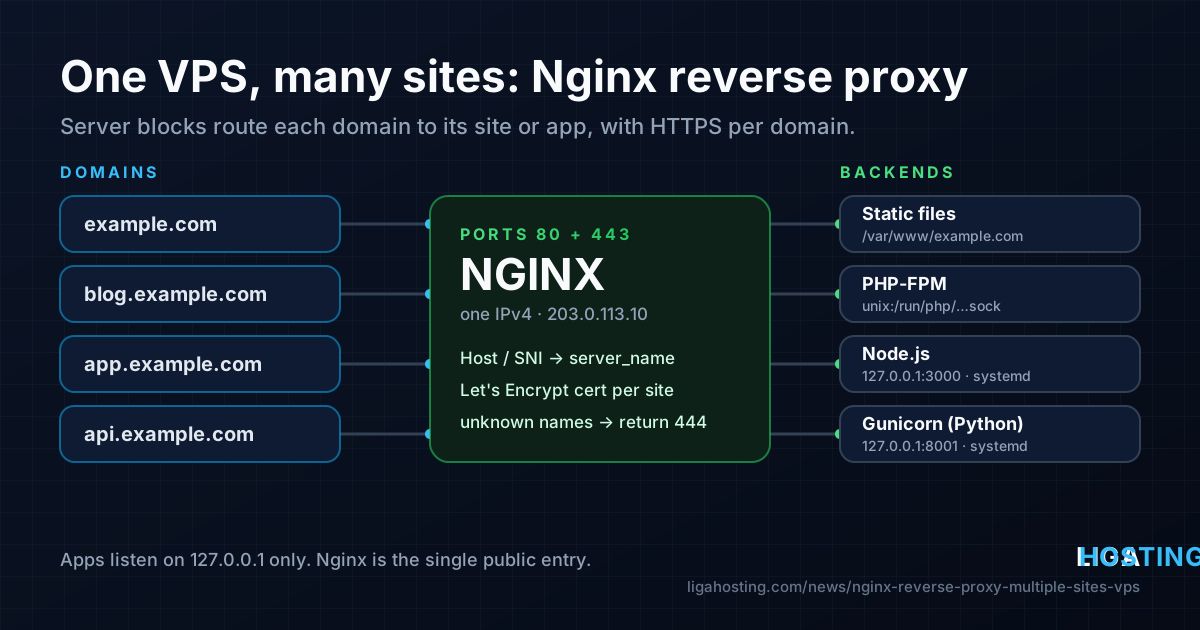
You have a VPS, one IP address and several projects: a company site, a blog, a Node.js app, maybe a small Python API. You do not need a server or an IP address for each one. Nginx can sit in front of all of them, receive every request on ports 80 and 443, and pass each one to the right site or app based on the domain name.
This guide builds that setup step by step on Ubuntu or Debian, with the AlmaLinux differences noted. By the end you will have a catch-all default server, a static or PHP site, a Node.js app and a Python app, each on its own domain with its own HTTPS certificate, and you will know how to check every piece.
How one IP address serves many domains
Every HTTP request carries the domain the visitor typed in the Host header. For HTTPS, the browser sends the same name during the TLS handshake (SNI), before anything is encrypted. Nginx compares that name with the server_name of each server { } block and uses the block that matches. One block per domain is called a server block (Apache calls them virtual hosts).
What happens inside a block depends on the project:
| Project | What Nginx does | Example domain |
|---|---|---|
| Static site (HTML, a built React/Vue app) | Serves files from a folder | example.com |
| PHP site (WordPress, Laravel) | Passes .php requests to PHP-FPM | blog.example.com |
| Node.js app | Reverse proxy to 127.0.0.1:3000 | app.example.com |
| Python app (Django, Flask, FastAPI) | Reverse proxy to Gunicorn on 127.0.0.1:8001 | api.example.com |
A reverse proxy means Nginx accepts the visitor's connection, opens its own connection to the app on a local port and sends the answer back. The apps never face the internet directly: Nginx handles HTTPS, compression, request size limits and logging for all of them in one place.
Step 1 — Point the domains and install Nginx
Create an A record for every domain and subdomain pointing to your VPS address (in this guide 203.0.113.10). Check that DNS answers before you request certificates:
dig +short example.com www.example.com app.example.com api.example.comEach line should print your VPS IP. Then install Nginx and open the web ports.
Ubuntu / Debian:
sudo apt update
sudo apt install -y nginx
sudo ufw allow 'Nginx Full'      # ports 80 and 443, if you use UFW
sudo systemctl enable --now nginx
AlmaLinux:
sudo dnf install -y nginx
sudo systemctl enable --now nginx
sudo firewall-cmd --permanent --add-service=http --add-service=https
sudo firewall-cmd --reload
# SELinux blocks Nginx from connecting to local app ports by default:
sudo setsebool -P httpd_can_network_connect 1
One layout difference matters for the rest of the guide. Debian and Ubuntu keep site files in /etc/nginx/sites-available/ and enable them with a symlink in /etc/nginx/sites-enabled/. AlmaLinux loads every *.conf file from /etc/nginx/conf.d/. On AlmaLinux, simply save each server block below as /etc/nginx/conf.d/<domain>.conf and skip the symlink step.
Step 2 — Add a default server that catches unknown names
If a request arrives with a name that matches no block — someone opens the bare IP, or an old domain still points at your server — Nginx sends it to the default server. Without one, that is simply the first block it loaded, so a random project of yours appears under somebody else's domain. Define the default explicitly and make it answer nothing:
sudo rm -f /etc/nginx/sites-enabled/default   # Debian/Ubuntu welcome page

sudo tee /etc/nginx/conf.d/00-default.conf > /dev/null <<'EOF'
server {
    listen 80 default_server;
    listen [::]:80 default_server;
    server_name _;
    return 444;    # close the connection without a response
}

server {
    listen 443 ssl default_server;
    listen [::]:443 ssl default_server;
    server_name _;
    ssl_reject_handshake on;   # refuse TLS for unknown names (Nginx 1.19.4+)
}
EOF
On AlmaLinux, also remove the default_server flag from the sample server { } block in /etc/nginx/nginx.conf, or delete that block, because only one default per port is allowed. If your VPS has no IPv6 enabled at all, drop the [::] lines here and in the blocks below.
Step 3 — A static or PHP site
Give every site its own folder and its own log files. Logs per domain make troubleshooting much faster later.
sudo mkdir -p /var/www/example.com/public
echo 'example.com works' | sudo tee /var/www/example.com/public/index.html

sudo tee /etc/nginx/sites-available/example.com > /dev/null <<'EOF'
server {
    listen 80;
    listen [::]:80;
    server_name example.com www.example.com;

    root /var/www/example.com/public;
    index index.html index.php;

    access_log /var/log/nginx/example.com.access.log;
    error_log  /var/log/nginx/example.com.error.log;

    location / {
        try_files $uri $uri/ =404;
    }
}
EOF

sudo ln -s /etc/nginx/sites-available/example.com /etc/nginx/sites-enabled/
sudo nginx -t && sudo systemctl reload nginx
nginx -t checks the syntax of every file before the reload; if it reports an error, the running configuration stays untouched. For a PHP site, install PHP-FPM (sudo apt install -y php-fpm), change the location / line to try_files $uri $uri/ /index.php?$args; and add:
    location ~ \.php$ {
        include snippets/fastcgi-php.conf;
        fastcgi_pass unix:/run/php/php8.3-fpm.sock;   # match your PHP version: ls /run/php/
    }
On AlmaLinux the PHP-FPM socket is /run/php-fpm/www.sock and there is no snippets/ folder; use include fastcgi_params; plus fastcgi_param SCRIPT_FILENAME $document_root$fastcgi_script_name; instead.
Step 4 — A Node.js app behind Nginx
The app should listen only on 127.0.0.1, so the port is not reachable from the internet and every visitor goes through Nginx. Run it as its own user with a systemd service, so it starts at boot and restarts if it crashes:
sudo useradd --system --create-home --home-dir /srv/app.example.com nodeapp
# copy your code into /srv/app.example.com, then: sudo -u nodeapp npm ci --omit=dev

sudo tee /etc/systemd/system/app-example.service > /dev/null <<'EOF'
[Unit]
Description=Node.js app for app.example.com
After=network.target

[Service]
User=nodeapp
WorkingDirectory=/srv/app.example.com
Environment=NODE_ENV=production
Environment=HOST=127.0.0.1
Environment=PORT=3000
ExecStart=/usr/bin/node server.js
Restart=on-failure

[Install]
WantedBy=multi-user.target
EOF

sudo systemctl daemon-reload
sudo systemctl enable --now app-example
curl -I http://127.0.0.1:3000/
Your code has to read HOST and PORT (for example app.listen(process.env.PORT, process.env.HOST) in Express). Check the path of Node with which node; it differs if you installed it with nvm.
The proxy headers are the same for every app, so put them in one shared file:
sudo mkdir -p /etc/nginx/snippets
sudo tee /etc/nginx/snippets/proxy.conf > /dev/null <<'EOF'
proxy_http_version 1.1;
proxy_set_header Host              $host;
proxy_set_header X-Real-IP         $remote_addr;
proxy_set_header X-Forwarded-For   $proxy_add_x_forwarded_for;
proxy_set_header X-Forwarded-Proto $scheme;
proxy_set_header Upgrade           $http_upgrade;
proxy_set_header Connection        $connection_upgrade;
proxy_read_timeout 60s;
EOF

# WebSocket support: sets "Connection: upgrade" only when the client asks for it
sudo tee /etc/nginx/conf.d/connection-upgrade.conf > /dev/null <<'EOF'
map $http_upgrade $connection_upgrade {
    default upgrade;
    ''      close;
}
EOF
Now the server block for the app:
server {
    listen 80;
    listen [::]:80;
    server_name app.example.com;

    access_log /var/log/nginx/app.example.com.access.log;
    error_log  /var/log/nginx/app.example.com.error.log;

    location / {
        proxy_pass http://127.0.0.1:3000;
        include snippets/proxy.conf;
    }
}
Save it as /etc/nginx/sites-available/app.example.com, enable it with the same ln -s command as before, then run sudo nginx -t && sudo systemctl reload nginx.
Because the app now sees every request coming from 127.0.0.1, tell it to trust the proxy headers, otherwise it logs the wrong visitor IP and may think HTTPS requests are plain HTTP. In Express that is app.set('trust proxy', 'loopback').
Step 5 — A Python app with Gunicorn
The pattern is identical: the app server listens on a local port, systemd keeps it running and Nginx proxies to it.
sudo useradd --system --create-home --home-dir /srv/api.example.com pyapp
sudo apt install -y python3-venv          # AlmaLinux: venv is included with python3
sudo -u pyapp python3 -m venv /srv/api.example.com/venv
sudo -u pyapp /srv/api.example.com/venv/bin/pip install gunicorn
# install your project and its requirements into the same venv

sudo tee /etc/systemd/system/api-example.service > /dev/null <<'EOF'
[Unit]
Description=Gunicorn for api.example.com
After=network.target

[Service]
User=pyapp
WorkingDirectory=/srv/api.example.com
ExecStart=/srv/api.example.com/venv/bin/gunicorn --workers 3 --bind 127.0.0.1:8001 app:app
Restart=on-failure

[Install]
WantedBy=multi-user.target
EOF

sudo systemctl daemon-reload
sudo systemctl enable --now api-example
app:app means "the object app in app.py" (Flask). For Django use myproject.wsgi:application; for FastAPI add -k uvicorn.workers.UvicornWorker and install uvicorn. A common starting point for workers is two per vCPU plus one; lower it on a small VPS with little RAM.
server {
    listen 80;
    listen [::]:80;
    server_name api.example.com;

    client_max_body_size 20m;      # largest upload you accept

    location /static/ {
        alias /srv/api.example.com/static/;   # served by Nginx, not Python
    }

    location / {
        proxy_pass http://127.0.0.1:8001;
        include snippets/proxy.conf;
    }
}
On the Python side, Django needs SECURE_PROXY_SSL_HEADER = ('HTTP_X_FORWARDED_PROTO', 'https') and the domain in ALLOWED_HOSTS; Flask apps can wrap the app in Werkzeug's ProxyFix.
Step 6 — HTTPS for every domain
With all blocks working on port 80, Certbot can get a certificate per site and edit each block to add HTTPS and a redirect from HTTP.
# Ubuntu / Debian
sudo apt install -y certbot python3-certbot-nginx
# AlmaLinux
sudo dnf install -y epel-release && sudo dnf install -y certbot python3-certbot-nginx

sudo certbot --nginx -d example.com -d www.example.com
sudo certbot --nginx -d app.example.com
sudo certbot --nginx -d api.example.com

sudo certbot certificates          # list certificates and expiry dates
sudo certbot renew --dry-run       # test automatic renewal
Issuing one certificate per site, rather than one certificate with every name in it, keeps the projects independent: removing a domain or a failed DNS change for one site does not block renewal for the others. For renewal timers, rate limits and wildcard certificates, see our guide Free HTTPS on a VPS with Let's Encrypt and the official Certbot documentation.
Step 7 — Verify each site and fix the usual errors
Test every name from the server itself, without depending on DNS or a browser cache:
# Which block answers for which name (HTTP)
curl -sI -H 'Host: app.example.com' http://127.0.0.1/ | head -n 1

# HTTPS with the right certificate, from your own computer
curl -sv --resolve app.example.com:443:203.0.113.10 https://app.example.com/ -o /dev/null 2>&1 | grep -E 'subject:|HTTP/'

# Which apps listen where (they should show 127.0.0.1, not 0.0.0.0)
sudo ss -ltnp | grep -E ':(80|443|3000|8001)\s'

# Full configuration as Nginx actually sees it
sudo nginx -T | grep -E 'server_name|listen|proxy_pass'| Symptom | Likely cause and fix |
|---|---|
502 Bad Gateway, log says connect() failed (111: Connection refused) | The app is not running or uses another port. Check systemctl status app-example and journalctl -u app-example -n 50. |
502, log says (13: Permission denied) on AlmaLinux | SELinux. Run sudo setsebool -P httpd_can_network_connect 1. |
| 504 Gateway Timeout | The app takes longer than proxy_read_timeout. Make the request faster, or raise the timeout only for that location. |
| Wrong site appears for a domain | The name is missing from server_name, or the block is not enabled. Check with nginx -T. |
| Redirect loop after enabling HTTPS | The app forces HTTPS but does not trust X-Forwarded-Proto. Enable the proxy setting in the framework. |
| 413 Request Entity Too Large | Raise client_max_body_size in that server block. |
The per-site error log is the first place to look: sudo tail -f /var/log/nginx/app.example.com.error.log.
Keep the projects from hurting each other
Sharing one server is efficient, but one misbehaving app can still slow down the rest. A few habits keep them apart:
- One Linux user per app. A bug or compromise in one project cannot read or overwrite another project's files.
- Memory limits per service. Add
MemoryMax=512Munder[Service]in a unit file, so a leaking app is restarted alone instead of pushing the whole VPS into the OOM killer. Our article on why a VPS runs out of memory explains how to size this. - Local ports only. Every app binds to 127.0.0.1; only Nginx listens on 80 and 443. Write down which port belongs to which app.
- Separate logs and certificates per domain, as set up above, so you can remove or move one project without touching the others.
When the combined load grows — high CPU during peaks, all memory in use, slow responses for every site — that is the signal to move to a larger VPS or split the busiest app onto its own server. The official Nginx proxy module documentation lists every directive used here if you want to go further.
Frequently Asked Questions
Do I need a separate IP address for each website?
No. Nginx picks the site from the domain name in the request, and for HTTPS from SNI, which every current browser sends. One IPv4 address can serve many domains, each with its own certificate.
How many sites can one VPS run?
There is no fixed number; it depends on traffic and on how much CPU and RAM each app uses. Several small static and PHP sites need very little; each Node.js or Python app keeps its own processes in memory. Watch free -h and the load during busy hours.
Should I use a Unix socket or a TCP port for the app?
Both work. A TCP port on 127.0.0.1 is the simplest and behaves the same on every distribution, including AlmaLinux with SELinux. Unix sockets save a little overhead but need correct file permissions and, on SELinux systems, extra labels.
Can I add a new domain later without downtime?
Yes. Add the new server block, run sudo nginx -t, then sudo systemctl reload nginx. A reload starts new worker processes with the new configuration and lets the old ones finish their requests, so existing sites are not interrupted.
Is Nginx with Docker containers different?
The proxy part is the same: publish the container port on 127.0.0.1 only (for example -p 127.0.0.1:3000:3000) and point proxy_pass at it. Publishing on all interfaces exposes the app directly and can bypass UFW rules.
A Standard VPS or Performance VPS from Liga Hosting comes with KVM virtualization, NVMe storage, DDoS protection, a dedicated IPv4 address and full root access, which is everything this setup needs to run several sites and apps on one server. The VPS is unmanaged, so you administer Nginx and your apps; contact us for anything related to the network, IP addresses or reverse DNS.